Home · 4 min read
How to make a Wi-Fi QR code for your home
Every visitor asks for the Wi-Fi, and the password on the router sticker is sixteen random characters. A QR code on the fridge fixes that for good.
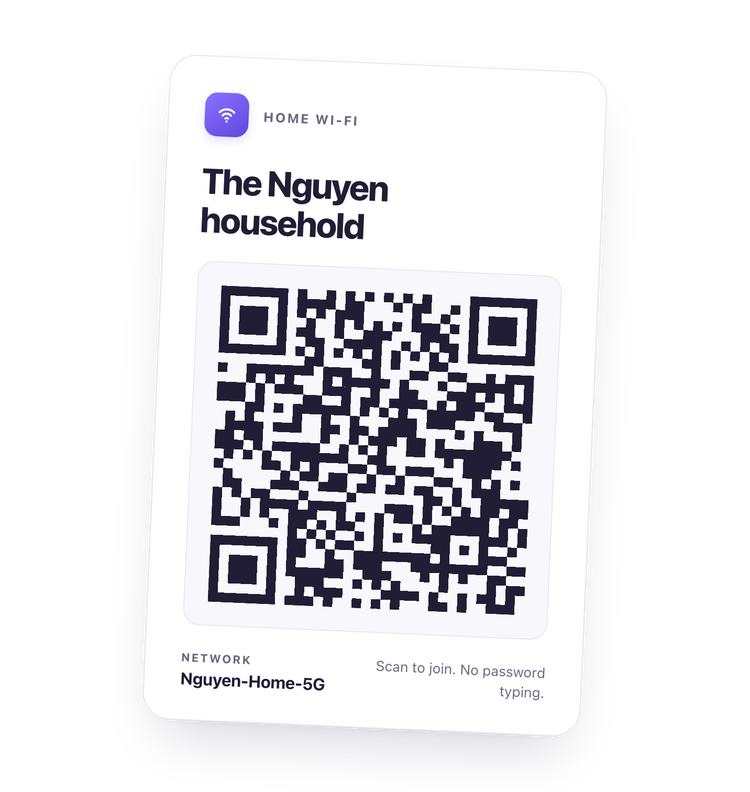
What you need
- Your network name (SSID), exactly as it appears in your phone's Wi-Fi list
- Your Wi-Fi password. Capitals and symbols count
- The security type. Most home routers use WPA2 or WPA3; it is usually on the router label or in its settings
Make the code
- Log in to the Share Wifi QR portal.
- Choose New code and enter your network name, password and security type.
- If your router doesn't broadcast its name, tick Hidden network.
- Choose Direct code. At home, a one-tap join is usually what you want.
- Download the code and print it.
Test it before you print a stack
Open the camera on an iPhone or an Android phone and point it at the code on your screen. A banner should offer to join your network. If it doesn't connect, check the password first.
Where to put it
- On the fridge or by the front door, where visitors arrive
- In the guest room
- In a small frame next to the router, so nobody has to hunt for it
Consider a guest network
Many routers can run a separate guest network that keeps visitors away from your computers and smart devices. Make the QR code for that network, and you can change its password without reconnecting everything you own.
If you change your password
A direct code contains the old password, so make and print a new one. If you change your password often, a tracked code lets you update it in the portal instead. Guests tap once to copy the new password.